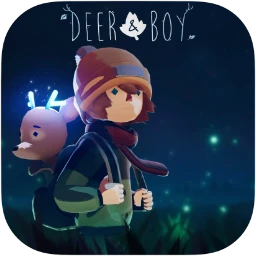
macOS Editor's Pick Games

Deer & Boy 1.0.19.24 [Wineskin]

10 views
Deer & Boy

Lifeline Games’ and Dear Villagers’ poignant 2.5D cinematic platformer, Deer & Boy, uses wordless storytelling to examine sorrow, loss, and camaraderie. As they navigate a bizarre and perilous environment together, players control a traumatized, fleeing youngster who forms a bond with a frail fawn.

The game is relatable and accessible to players of all ages and cultures, as every moment speaks to the heart without words.

A vulnerable fawn encounters a fugitive boy. Immerse yourself in a beautiful cinematic journey with breathtaking graphics and heartfelt music to experience their unspoken connection.

Your playstyle and relationships change as your buddy transforms from a helpless fawn into a magnificent stag. You defend your weak companion first, then engage in equal combat while honing your skills.

This is a kid-friendly tale about a boy and a deer’s endearing bond. It’s a quest to comprehend how intimacy provides power and healing for grownups. Everybody discovers something different on this contemplative, significant journey.

Core Gameplay & Story Features

Deer & Boy is ideal for playing alone or with groups because it provides a variety of experiences.

  • A narrative devoid of conversation: Only emotional music and visual imagery.
  • Growing companion: As the narrative unfolds, the animal will develop into a devoted friend and guardian.
  • Playable animation: A visually appealing cinematic experience.
  • Intriguing riddles: Cerebral obstacles woven throughout your adventure.
  • Cinematic adventure: colorful 3D environments with striking sights.
  • Family-friendly: There is no explicit violence or difficult language, making it appropriate for all ages.
  • Full story: a comprehensive journey that can be finished over several play sessions.

Set out on a singular cinematic journey where an animal develops alongside you and becomes a reliable travel companion.

Frequently asked questions

How to install and activate?

Run the downloaded image and drag the application to the Applications folder shortcut.
Once copying is complete, the application can be launched via Launchpad.
If an error occurs when launching the game, run the "Fix" file in the image.

Is the program corrupted? Is the file broken? Or is there other errors?

There are so many errors, we can't list them all here. Therefore, we've described all the solutions (with pictures) in the article: Errors when installing applications on a Mac

How do I update? Officially? What happens with activation?

Official updates may result in loss of activation unless otherwise stated in the installation instructions.
To update the software from this website, you must download the new version of the software from here (if available) and install it over the version currently installed on your computer. This will preserve your activation and settings for the software.

How do I download it? The link isn't working? What is .torrent?

To download large files, it is recommended to use any download manager, for example, FDM (Free Download Manager)
For downloading from a file sharing service like Filen.io, it's not recommended to use Safari. Use Google Chrome or the aforementioned FDM browser, for example.
To download files via torrent (.torrent file), you need a torrent client, such as Transmission or the aforementioned FDM.
Please remember that providers may block access to some websites (1fichier.com, etc.). To bypass these blocks, it is recommended to use a VPN.

An update has been released. When will you update the version?

The site administration doesn't hack anything. That's the job of release teams and some enthusiasts. They're the ones responsible for ensuring updates are available. But you can hack software yourself by learning reverse engineering.

Add... Where is the order desk?

Definitely not in the comments. The site administration doesn't hack anything, and there's no order desk. However, you can order the software you need (not for free) in a special thread on forum.ru-board.com.

How to change the language?

Open System Preferences -> General > Language & Region -> Applications – "+".
Select an app and language. This method works for most apps.
The language in Adobe products is usually selected during the installation of the product itself.
The language in games is usually changed in the game settings itself.
There are exceptions. Don't hesitate to search for information online.

How to delete?

There are many options. The easiest is to use specialised app removal utilities, such as App Cleaner & Uninstaller.
To remove Adobe products, use the Creative Cloud Cleaner Tool.

Need help?

The site offers a paid service: remote assistance (via AnyDesk, Zoom, or Skype) with the installation of any applications (not just those from this site) on any Mac or PC.

specs.txt
version1.0.19.24 [Wineskin]
developerLifeline Games
activationNot required
testedmacOS Tahoe , Mac mini 2024 M4
size5GB
architectureARM
languagesRussian , English , German , Spanish , Italian , Traditional Chinese , Simplified Chinese , Korean , Polish , Portuguese , French , Japanese
voice_langsMusical accompaniment

Installation notes

Run the downloaded image and drag the application to the Applications folder shortcut.
Once copying is complete, the application can be launched via Launchpad.
If an error occurs when launching the game, run the "Fix" file in the image.

Download — Download from Mail.ru

5GB · v1.0.19.24 [Wineskin]

Always scan downloaded files before opening them. This listing is provided for informational purposes; verify compatibility with your system before installing.

Leave a comment

Your email address will not be published. Required fields are marked *