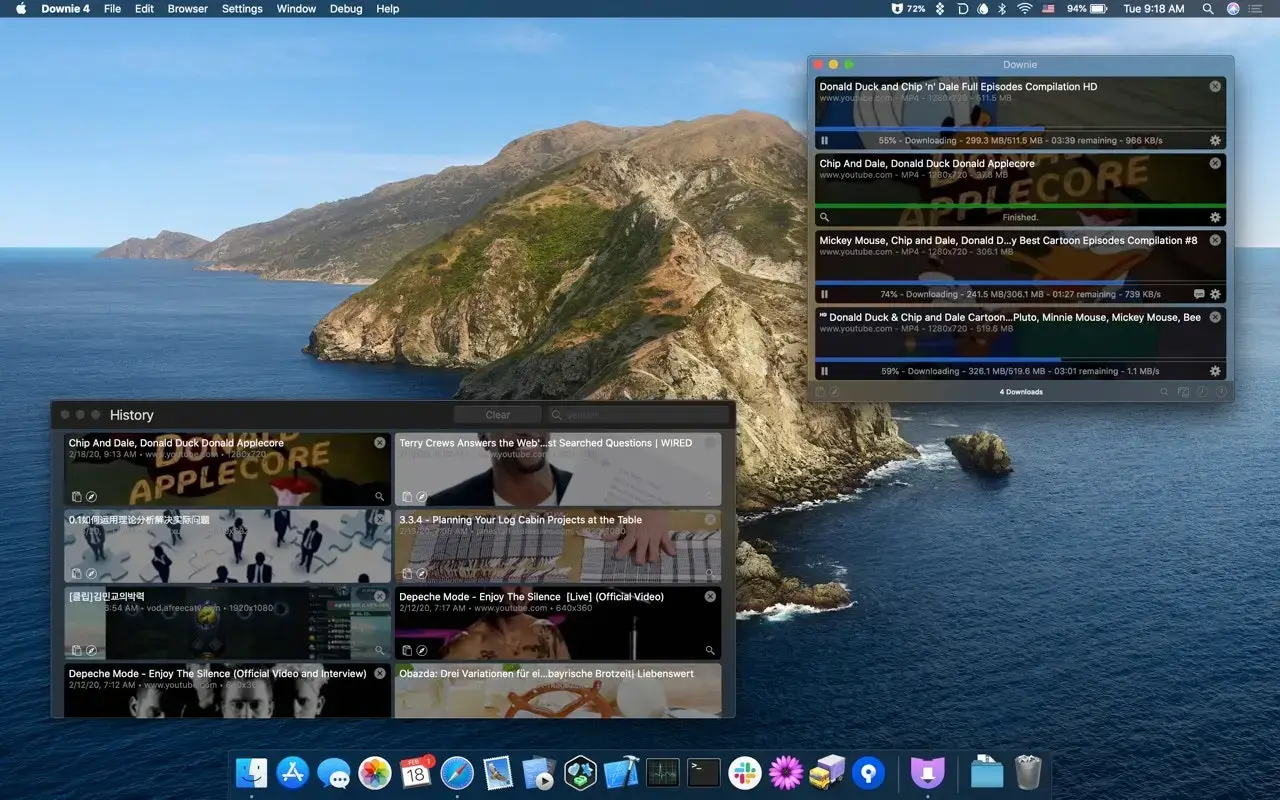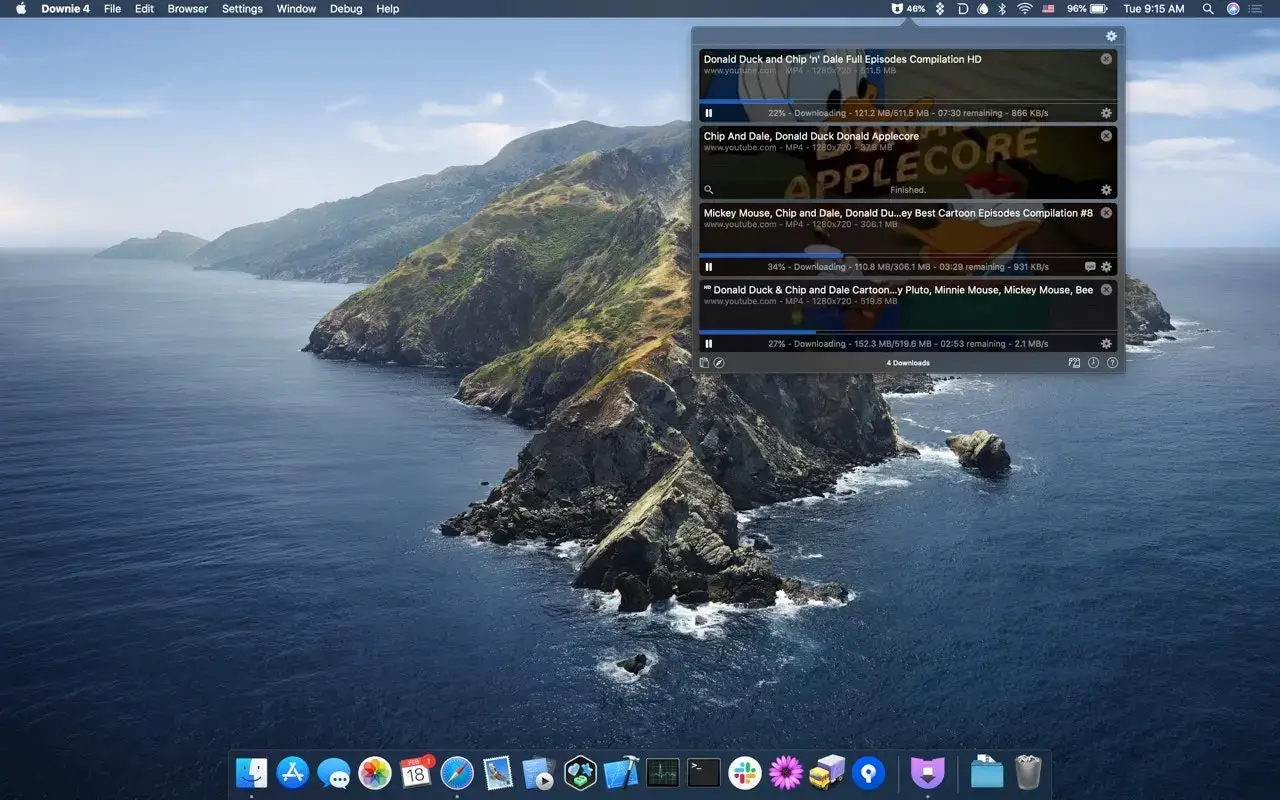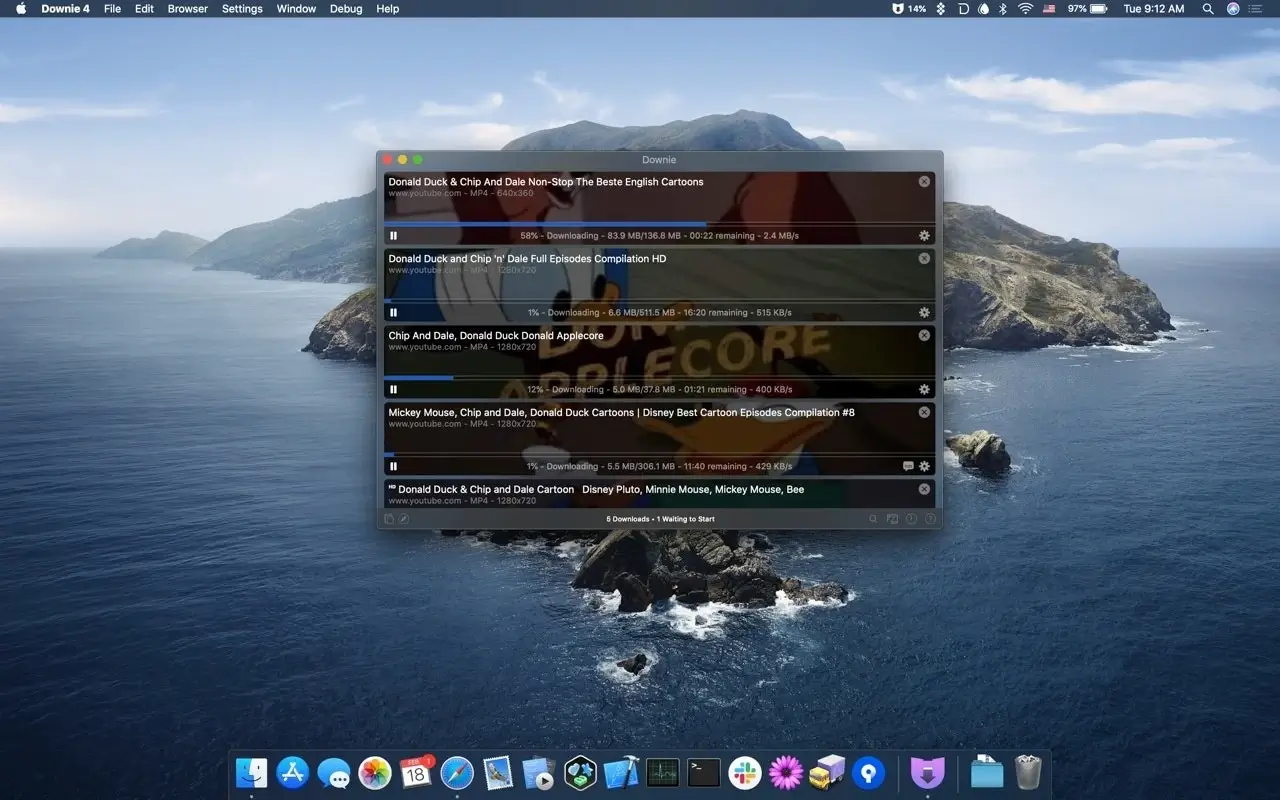
To download a video, locate it and either drag the link into the app or use the Downie browser extension, which will take care of the rest. To get a video on your Mac, you simply just need to do that. You may save video content from thousands of websites, such as Facebook, Vimeo, and Instagram, and download videos from YouTube with Downie 4. It’s quick and easy, so you can do the task in a matter of seconds without being bogged down by superfluous features.
Key Features of Downie 4
- Get videos from YouTube.
Downie facilitates the download of videos from more than 1,200 websites, including Facebook, Instagram, Vimeo, YouTube, and more. You can count on Downie to save videos from websites to your Mac.
- Search straight in the video downloader
You can locate the content you require without switching between Downie and your browser. You only need to type your query into the app’s search field, and it will locate the video for you in no time.
- Save YouTube videos in 4K.
Downie is capable of handling even 4K videos, in contrast to several other YouTube downloaders. This implies that you can download high-resolution, high-quality videos from YouTube and any other internet website.
- Download only audio or MP4 files.
Downie can save simply the audio track if you don’t need the whole video file. Alternatively, you can set Downie to automatically convert the MP4 video if that’s all you need.
- Simply drag and drop the URL.
Downie is quite easy to use; just copy and paste the video URL or drag and drop it, and it will begin downloading on its own. Downie will find the video and store it for you even if the page has text or other information.
- Permute post-processing
Permute, a potent media converter, is easily integrated with Downie. Send a downloaded movie to Permute and get the outcome if you want to change its format or combine its components into one file.