macOS NewEditor's Pick Programs

Gitfox 4.3.1 fix

115 views
Gitfox

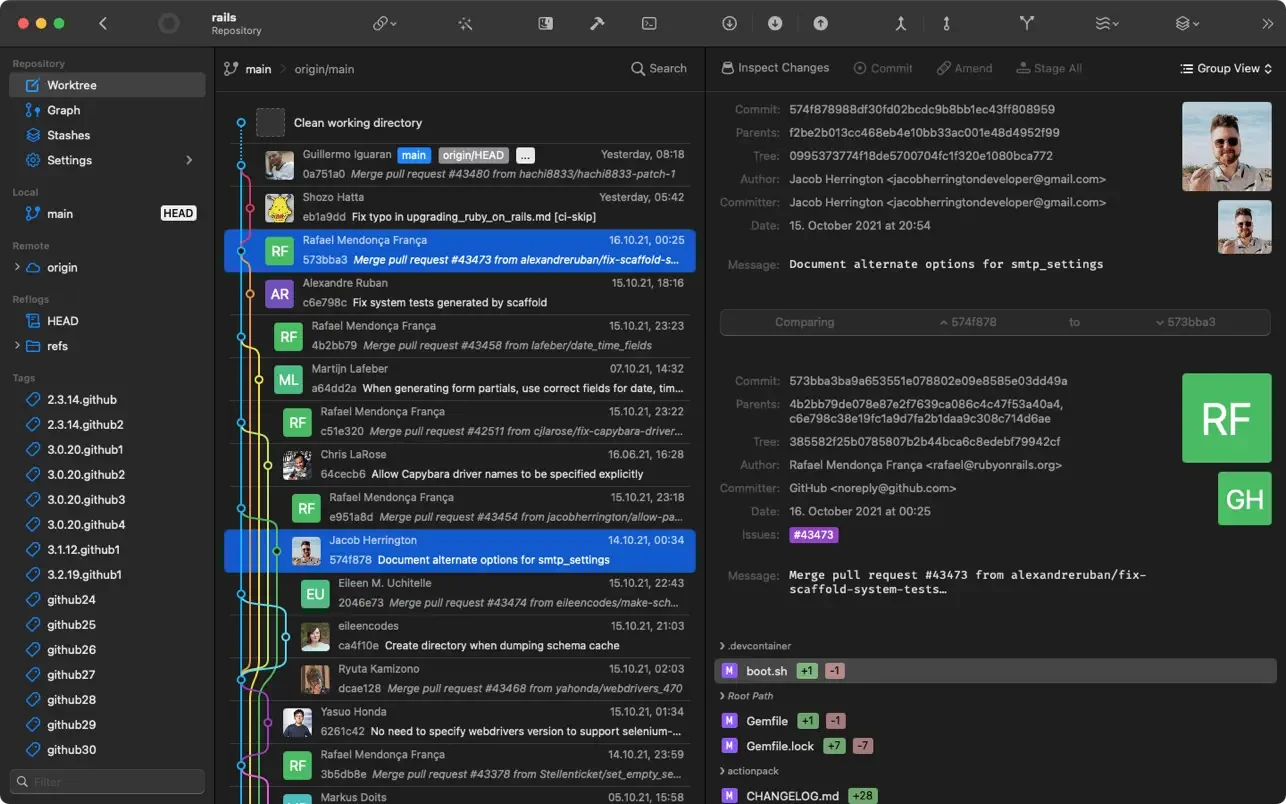
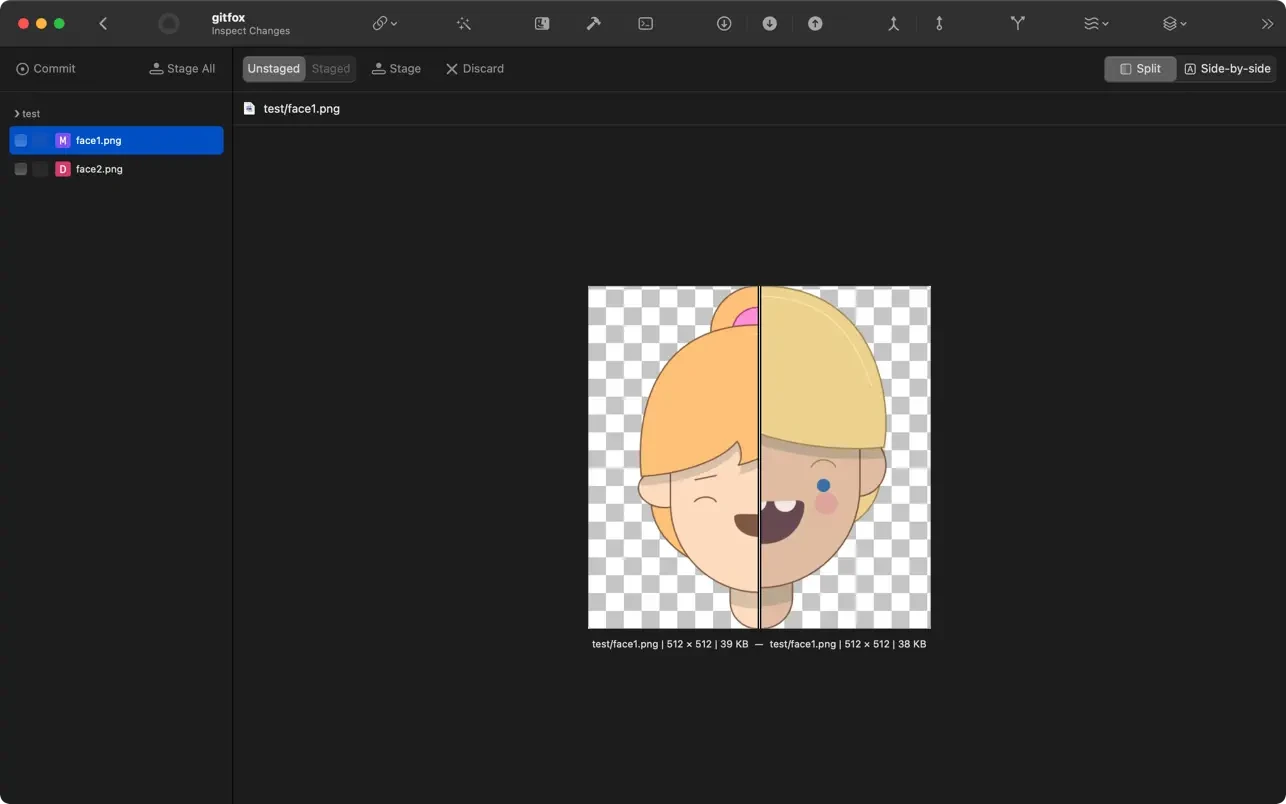
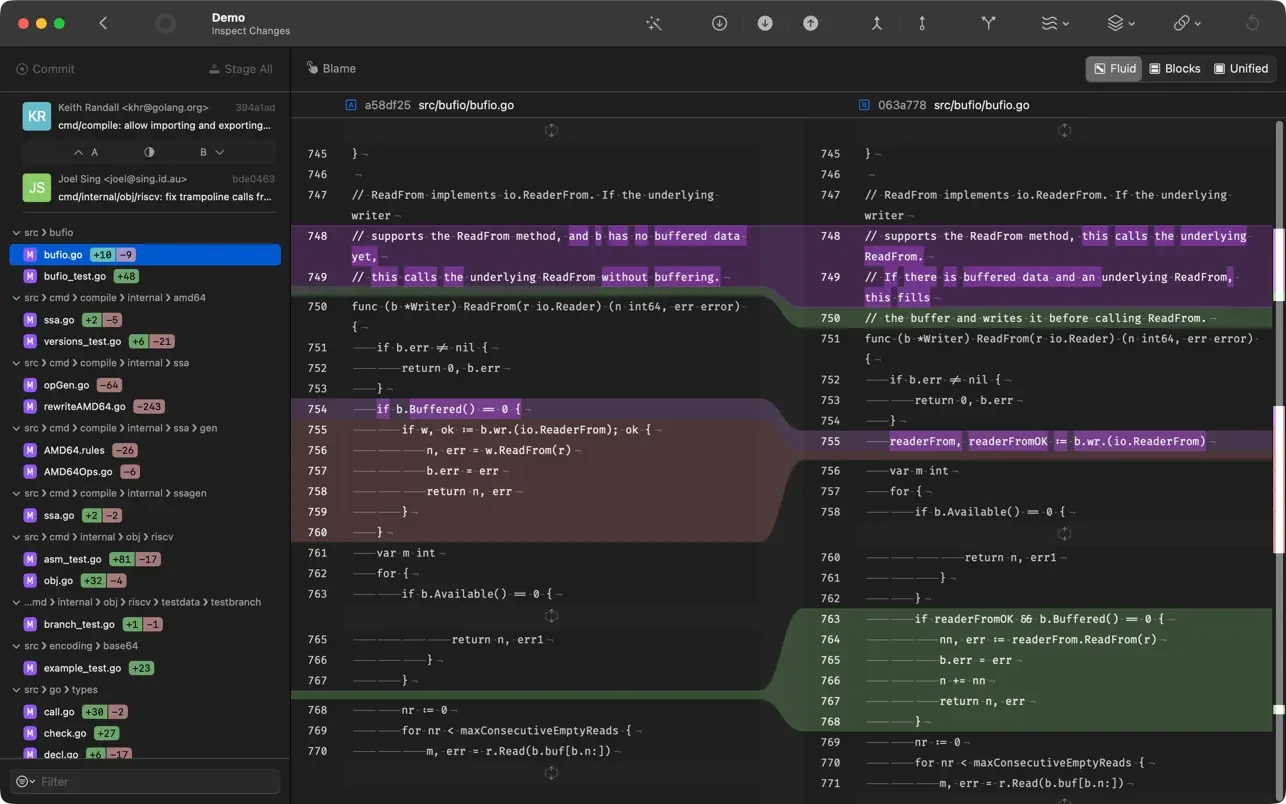
Gitfox is a robust native macOS Git client designed to make version control easier for developers. It has deep keyboard integration, granular staging, excellent inline and picture diffs, and an easy-to-use visual interface. Gitfox makes processes like merging, branching, and rebasing easier and removes clutter from repositories.

Designed for developers who appreciate a well-designed interface, high performance, and deep integration with Apple’s operating system, Gitfox is a powerful, lightweight, and fully native Git client. It helps simplify complex Git operations, making working with repositories intuitive and visually pleasing.

Features include:

Excellent Diffs and Line Staging: Gitfox clearly highlights inline changes; Line Staging allows you to break down your work into small steps and commit only the lines you need.

Interactive Rebase and Git Flow: Complete history rewriting functionality, including the ability to change, rename, remove, squash, or rearrange commits. Using only a few clicks, you can manage features, bug fixes, hotfixes, and releases using fully integrated Git Flow.

Drag & Drop for Complex Commands: Get rid of the need to manually type complex commands. Dragging and dropping interface elements can be used to create branches and tags, push, cherry-pick, merge, or rebase.

Manage various identities: You can work on projects at different organisations by simply switching between several Git accounts and customising each repository’s name and email.

Advanced Search and Reflog: Support for Reflog, a log of all repository actions, and robust full-text search with intelligent result highlighting. If you unintentionally erase a branch or overlook a crucial commit, it can save you.

Simplified conflict resolution: With just one click, you can choose the necessary party (yourself or the incoming one).

Integration with tools and services:

Accounts: Simple OAuth authorisation for Bitbucket, GitLab, and GitHub.

Merge tools: In addition to any tools set up in your system, external merge tools like Kaleidoscope, Araxis, P4Merge, and FileMerge are supported.
Frequently asked questions

How to install and activate?

Run the downloaded image and drag the application to the Applications folder shortcut.
Once copying is complete, the application can be launched via Launchpad.

Is the program corrupted? Is the file broken? Or is there other errors?

There are so many errors, we can't list them all here. Therefore, we've described all the solutions (with pictures) in the article: Errors when installing applications on a Mac

How do I update? Officially? What happens with activation?

Official updates may result in loss of activation unless otherwise stated in the installation instructions.
To update the software from this website, you must download the new version of the software from here (if available) and install it over the version currently installed on your computer. This will preserve your activation and settings for the software.
Read more in the article: Updating pirated apps

How do I download it? The link isn't working? What is .torrent?

To download large files, it is recommended to use any download manager, for example, FDM (Free Download Manager)
For downloading from a file-sharing service like Filen.io, it's not recommended to use Safari. Use Google Chrome or the aforementioned FDM browser, for example.
To download files via torrent (.torrent file), you need a torrent client, such as Transmission or the aforementioned FDM.
Please remember that providers may block access to some websites (1fichier.com, etc.). To bypass these blocks, it is recommended to use a VPN.

An update has been released. When will you update the version?

The site administration doesn't hack anything. That's the job of release teams and some enthusiasts. They're the ones responsible for ensuring updates are available. But you can hack software yourself by learning reverse engineering.

Add... Where is the order desk?

Definitely not in the comments. The site administration doesn't hack anything, and there's no order desk. However, you can order the software you need (not for free) in a special thread on forum.ru-board.com.

How to change the language?

Open System Preferences -> General -> Language & Region -> Applications -> "+".
Select an app and language. This method works for most apps.
The language in Adobe products is usually selected during the installation of the product itself.
The language in games is usually changed in the game settings themselves.
There are exceptions. Don't hesitate to search for information online.

How to delete?

There are many options. The easiest is to use specialised app removal tools, such as App Cleaner & Uninstaller.
To remove Adobe products, use the Creative Cloud Cleaner Tool.

Need help?

The site offers a paid service: remote assistance (via AnyDesk, Zoom, or Skype) with the installation of any applications (not just those from this site) on any Mac or PC.

specs.txt
version4.3.1 fix
developerErik Aigner
activationIncluded
compatibilitymacOS 26 and later
size36MB
architectureARM , x86 (64-bit)
languagesEnglish

Installation notes

Run the downloaded image and drag the application to the Applications folder shortcut.
Once copying is complete, the application can be launched via Launchpad.

Download — Direct download link

36MB · v4.3.1 fix

More mirrors (2)

Always scan downloaded files before opening them. This listing is provided for informational purposes; verify compatibility with your system before installing.

Leave a comment

Your email address will not be published. Required fields are marked *