macOS Editor's Pick Programs

Permute 3 4.0.4

84 views
Permute 3

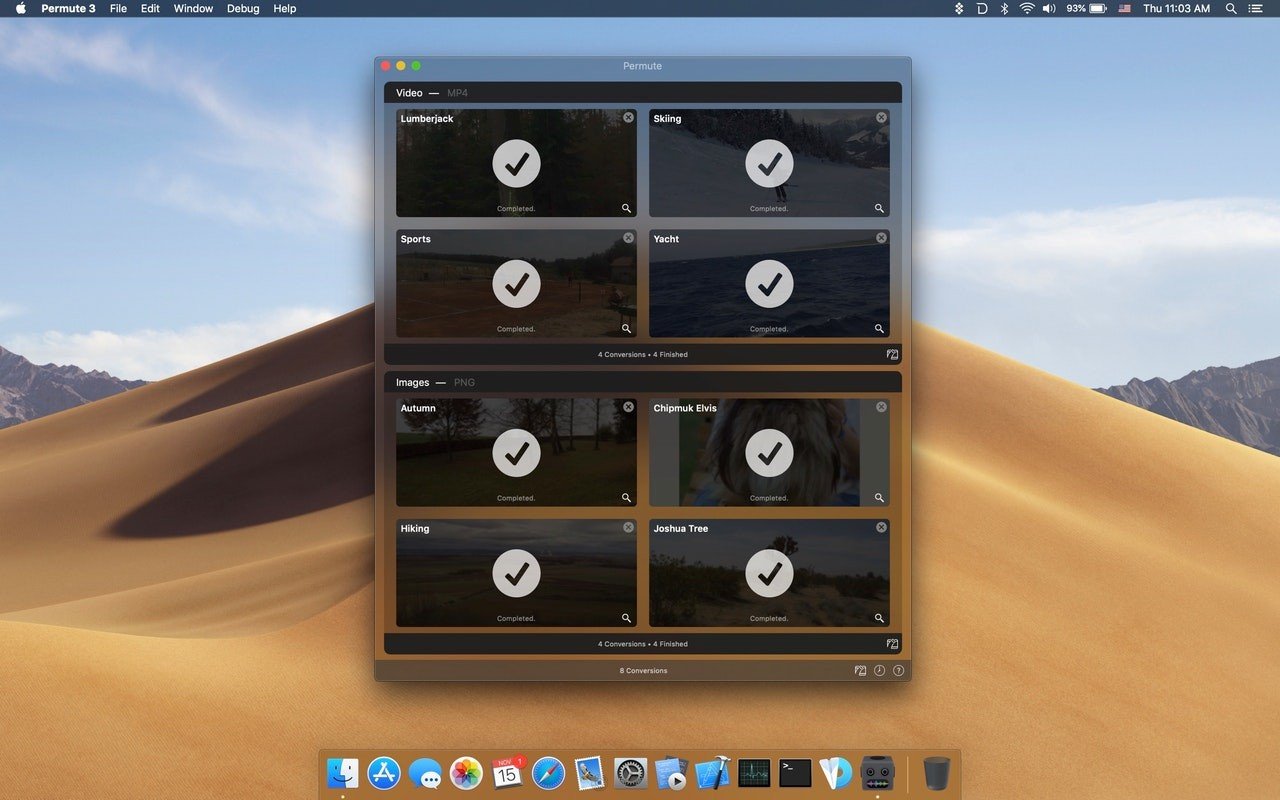
Permute 3 is a quick converter for audio, video, and images. ‘Permute’ translates nearly everything; thus, you can use it for files in any format. Media files can be converted into any format you choose, but turning water into wine will require additional services. Permute also has a number of other capabilities, like the ability to combine two films or add a subtitle track.

Key Features of Permute 3

  • Converter for video

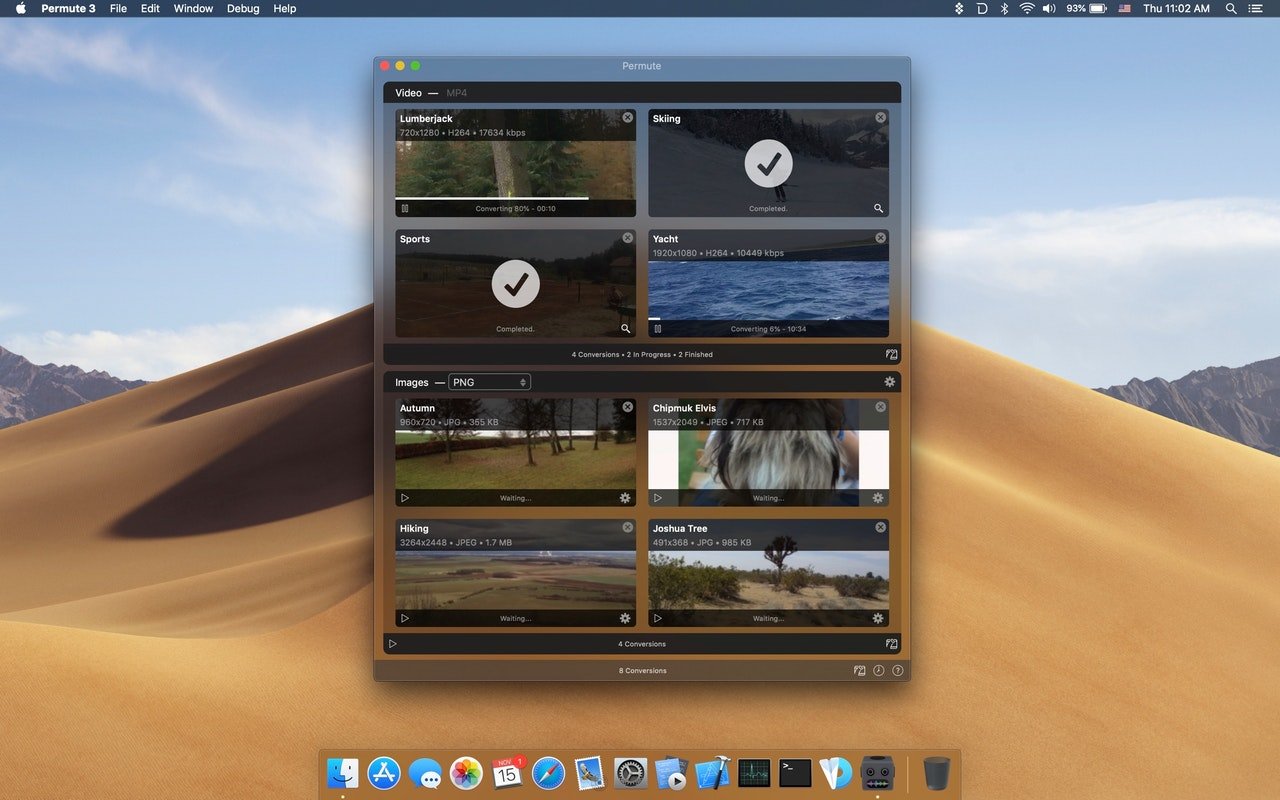
The best part about Permute is that it eliminates the need for separate MP4 and FLV converters. Rather, all formats are handled by a single video converter. With just one click, you can easily convert downloaded videos to dozens of other formats.

  • Converter for audio

Permute is excellent for audio conversion, just like it is for video. To convert an audio file, simply drag & drop it into the application and select the desired format. Whether you go with FLAC or Apple Lossless, Permute will manage everything flawlessly. Drag, drop, select, and you’re done!

  • Converting video to audio

For many converters, this is a challenging step, but Permute converts video to audio files with ease. Therefore, you don’t need to look for it separately if all you need is the audio track from a video you like. You have access to interviews and voiceovers.

  • Converting images

Permute can be used to convert JPG images to PNG instead of launching Photoshop, Illustrator, and Sketch. Your photos are ready with just two clicks. BMP, GIF, and even TIFF are all included in the image converter.

  • Editing videos

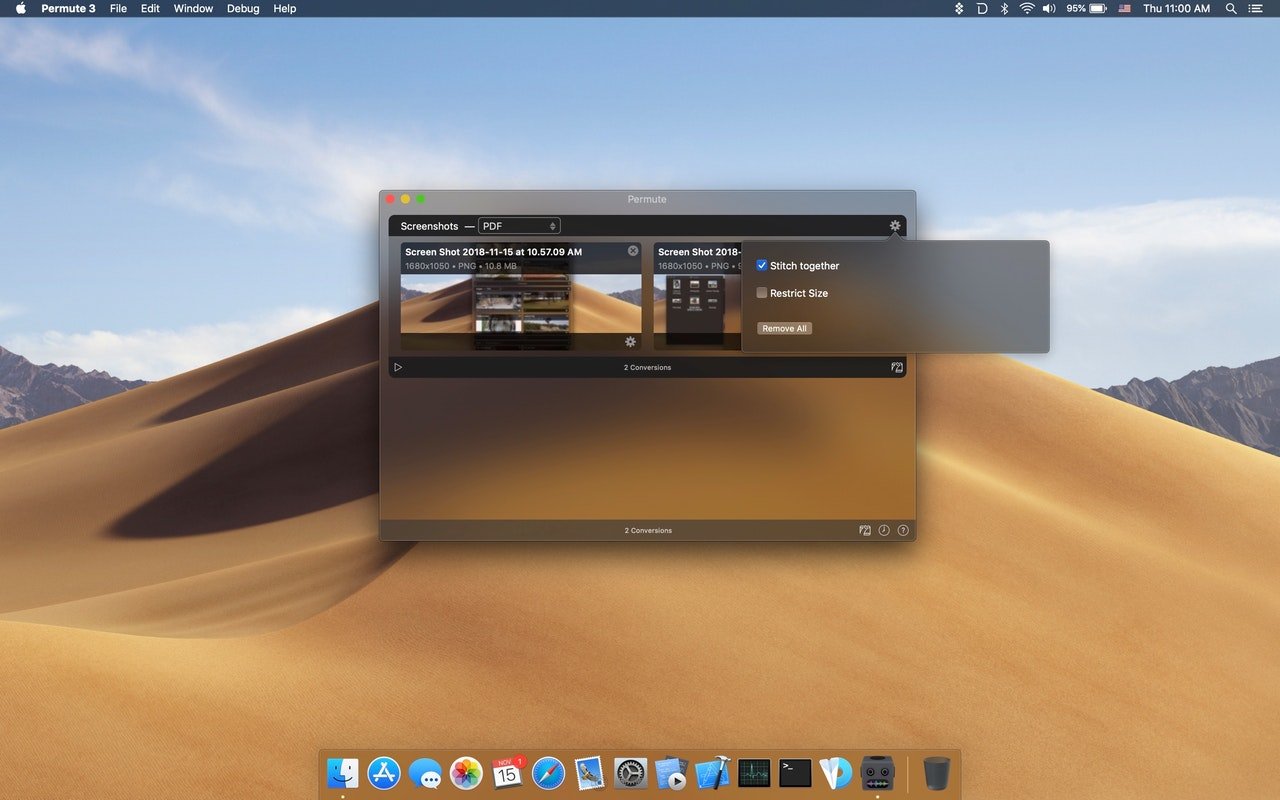
“Merging” two videos into one is a cool feature of Permute. Considering that you don’t require any sophisticated video editing software or online viewing tools while processing, it’s very awesome. After choosing “Merge With” with a right-click on the chosen clip, you’re done!

  • Changing to ISO

Get your files ready to be burnt to a virtual drive or a DVD (if you still require a DVD, my old friend). You may convert any file to ISO format so you can burn it later.
Frequently asked questions

How to install and activate?

Run the downloaded image and drag the application to the Applications folder shortcut.
Once copying is complete, the application can be launched via Launchpad.

Is the program corrupted? Is the file broken? Or is there other errors?

There are so many errors, we can't list them all here. Therefore, we've described all the solutions (with pictures) in the article: Errors when installing applications on a Mac

How do I update? Officially? What happens with activation?

Official updates may result in loss of activation unless otherwise stated in the installation instructions.
To update the software from this website, you must download the new version of the software from here (if available) and install it over the version currently installed on your computer. This will preserve your activation and settings for the software.

How do I download it? The link isn't working? What is .torrent?

To download large files, it is recommended to use any download manager, for example, FDM (Free Download Manager)
For downloading from a file sharing service like Filen.io, it's not recommended to use Safari. Use Google Chrome or the aforementioned FDM browser, for example.
To download files via torrent (.torrent file), you need a torrent client, such as Transmission or the aforementioned FDM.
Please remember that providers may block access to some websites (1fichier.com, etc.). To bypass these blocks, it is recommended to use a VPN.

An update has been released. When will you update the version?

The site administration doesn't hack anything. That's the job of release teams and some enthusiasts. They're the ones responsible for ensuring updates are available. But you can hack software yourself by learning reverse engineering.

Add... Where is the order desk?

Definitely not in the comments. The site administration doesn't hack anything, and there's no order desk. However, you can order the software you need (not for free) in a special thread on forum.ru-board.com.

How to change the language?

Open System Preferences -> General > Language & Region -> Applications – "+".
Select an app and language. This method works for most apps.
The language in Adobe products is usually selected during the installation of the product itself.
The language in games is usually changed in the game settings itself.
There are exceptions. Don't hesitate to search for information online.

How to delete?

There are many options. The easiest is to use specialised app removal tools, such as App Cleaner & Uninstaller.
To remove Adobe products, use the Creative Cloud Cleaner Tool.

Need help?

The site offers a paid service: remote assistance (via AnyDesk, Zoom, or Skype) with the installation of any applications (not just those from this site) on any Mac or PC.

specs.txt
version4.0.4
developerCharlie Monroe Software
activationIncluded
compatibilitymacOS 10.14.6 and later
size84MB
architectureARM
languagesRussian , English , German , Arabic , Afrikaans , Belarusian , Spanish , Italian , Simplified Chinese , Persian , Portuguese , Ukrainian , French , Czech , Swedish

Installation notes

Run the downloaded image and drag the application to the Applications folder shortcut.
Once copying is complete, the application can be launched via Launchpad.

Download — Direct download link

84MB · v4.0.4

More mirrors (2)

Always scan downloaded files before opening them. This listing is provided for informational purposes; verify compatibility with your system before installing.

Leave a comment

Your email address will not be published. Required fields are marked *