
macOS TrendingEditor's Pick Programs

SiteSucker Pro 6.1.8

71 views
SiteSucker Pro

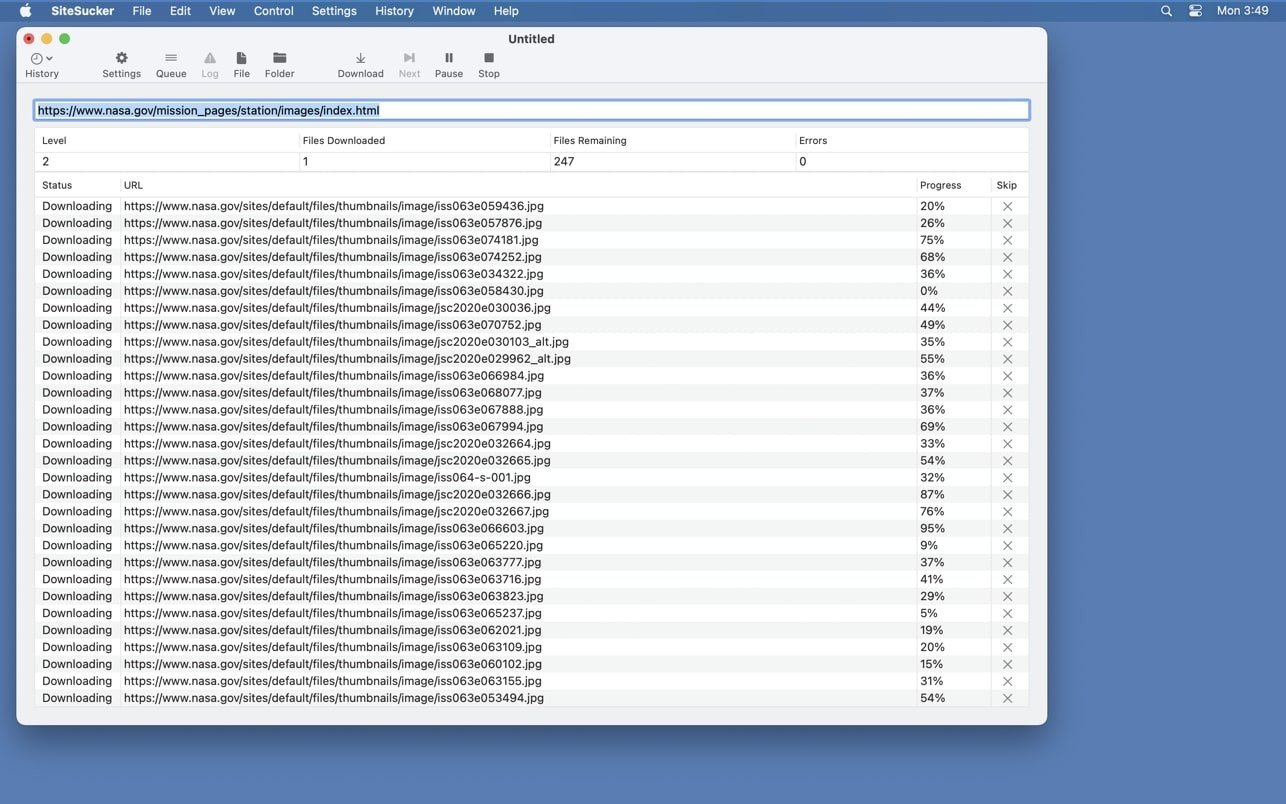
SiteSucker Pro may download a website in its entirety to your computer while maintaining its structure, or it can download specific types of material (such as photos, archives, etc.). A Macintosh program called SiteSucker retrieves websites from the Internet automatically.

The more sophisticated version of SiteSucker, known as SiteSucker Pro, has the ability to download embedded videos, such as Vimeo and YouTube videos. Files added to the ROBOTS.txt exclusion list, which is part of every website’s structure, will not be downloaded when a website is downloaded using default parameters. Nevertheless, it is simple to disable this restriction in the settings.

From the time it loads, the program keeps a log file in which it records any loading errors and other parameters that are defined in the relevant options menu item. By selecting Open Log from the toolbar, you can view the log file. The console application launches the file itself.

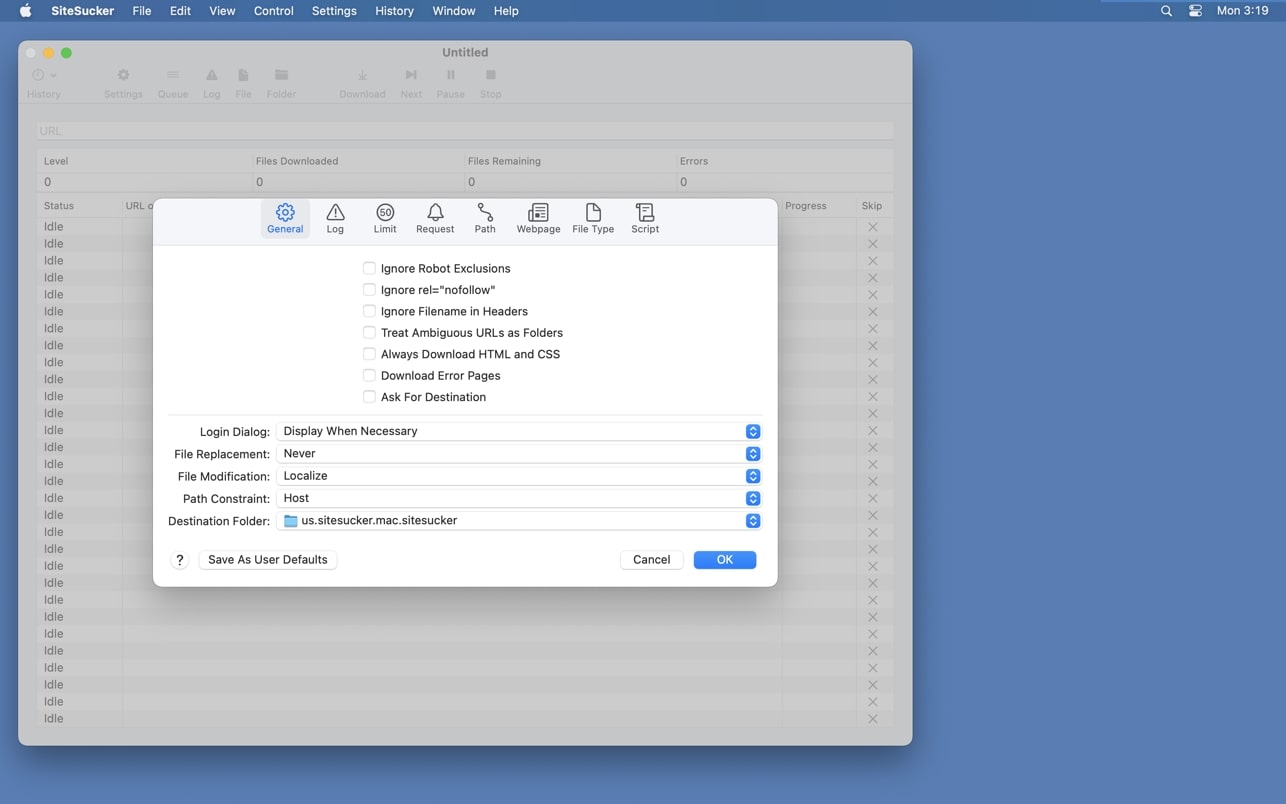
All of the functional settings are arranged in a drop-down menu.

  • GENERAL: This page includes the most crucial parameters, including choosing the destination folder on the hard drive, ignoring exceptions in ROBOTS.txt, and program behaviour when loading identical files.
  • LOGS: Choose which events to include in the program log file.
  • LIMITS: Limiting the amount of downloaded files, their minimum and maximum sizes, link depth, etc.
  • FILE TYPES and upload parameters. You can set up the upload of all files or just specific file types on this page. You can freely arrange the download of certain file types using the parameters in the LIMITS and FILE TYPES tabs, which substantially simplifies post-processing of an already uploaded site and removes the need to wastefully download megabytes of superfluous data.
  • PATHS: You can enter particular links to files or web pages that need to be downloaded or ignored using this tab.
  • ADVANCED: This area offers optional advanced programme settings that greatly increase the programme’s functionality. For instance, SiteSucker can pose as Safari or Firefox in order to get around some websites’ prohibitions against utilising download managers to download their material.
Frequently asked questions

How to install and activate?

Mount the image and run Open Gatekeeper friendly.
Press Enter to bypass Gatekeeper in the terminal window.
Drag the application to the Applications folder.
The application is ready for use.

Is the program corrupted? Is the file broken? Or is there other errors?

There are so many errors, we can't list them all here. Therefore, we've described all the solutions (with pictures) in the article: Errors when installing applications on a Mac

How do I update? Officially? What happens with activation?

Official updates may result in loss of activation unless otherwise stated in the installation instructions.
To update the software from this website, you must download the new version of the software from here (if available) and install it over the version currently installed on your computer. This will preserve your activation and settings for the software.
Read more in the article: Updating pirated apps

How do I download it? The link isn't working? What is .torrent?

To download large files, it is recommended to use any download manager, for example, FDM (Free Download Manager)
For downloading from a file sharing service like Filen.io, it's not recommended to use Safari. Use Google Chrome or the aforementioned FDM browser, for example.
To download files via torrent (.torrent file), you need a torrent client, such as Transmission or the aforementioned FDM.
Please remember that providers may block access to some websites (1fichier.com, etc.). To bypass these blocks, it is recommended to use a VPN.

An update has been released. When will you update the version?

The site administration doesn't hack anything. That's the job of release teams and some enthusiasts. They're the ones responsible for ensuring updates are available. But you can hack software yourself by learning reverse engineering.

Add... Where is the order desk?

Definitely not in the comments. The site administration doesn't hack anything, and there's no order desk. However, you can order the software you need (not for free) in a special thread on forum.ru-board.com.

How to change the language?

Open System Preferences -> General > Language & Region -> Applications – "+".
Select an app and language. This method works for most apps.
The language in Adobe products is usually selected during the installation of the product itself.
The language in games is usually changed in the game settings itself.
There are exceptions. Don't hesitate to search for information online.

How to delete?

There are many options. The easiest is to use specialised app removal utilities, such as App Cleaner & Uninstaller.
To remove Adobe products, use the Creative Cloud Cleaner Tool.

Need help?

The site offers a paid service: remote assistance (via AnyDesk, Zoom, or Skype) with the installation of any applications (not just those from this site) on any Mac or PC.

specs.txt
version6.1.8
developerRick Cranisky
activationK'ed by TNT team
compatibilitymacOS 26 and later
size6MB
architectureARM , x86 (64-bit)
languagesEnglish , German , Spanish , Italian , Portuguese , French

Installation notes

Mount the image and run Open Gatekeeper friendly.
Press Enter to bypass Gatekeeper in the terminal window.
Drag the application to the Applications folder.
The application is ready for use.

Download — Direct download link

6MB · v6.1.8

More mirrors (2)

Always scan downloaded files before opening them. This listing is provided for informational purposes; verify compatibility with your system before installing.

Leave a comment

Your email address will not be published. Required fields are marked *