OS X El Capitan enhances system speed and makes using your Mac even more convenient. OS X El Capitan builds upon last year’s OS X Yosemite with several enhancements, such as enhanced Spotlight search, additional built-in programs, and more practical window management.
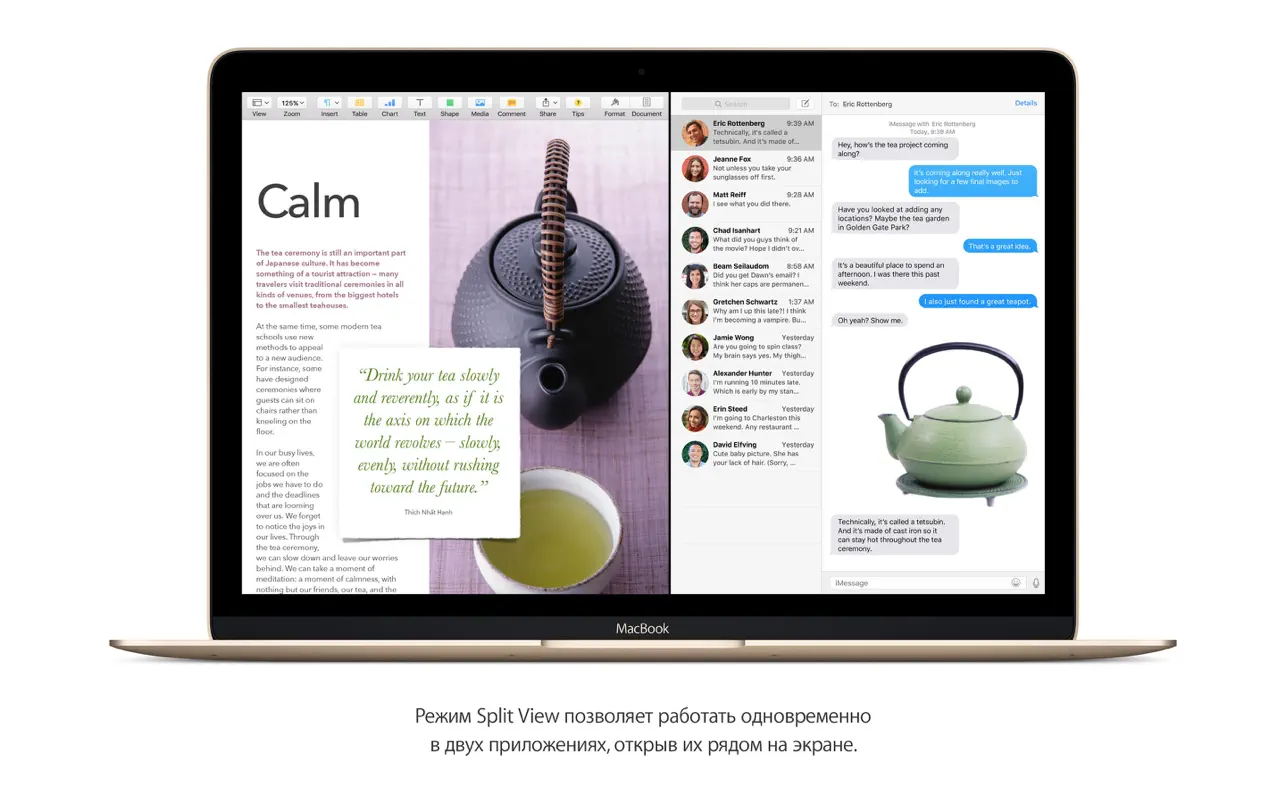
- You may make better use of your screen by using Split View mode.
- Open two apps side by side on the screen to work on them concurrently.
Improvements in Mail:
Manage emails using the swipe gesture on your trackpad, just like on your iPhone. Swipe right to mark an email as read or unread, or swipe left to delete it. The improved full-screen mode allows you to switch between your inbox and drafts.
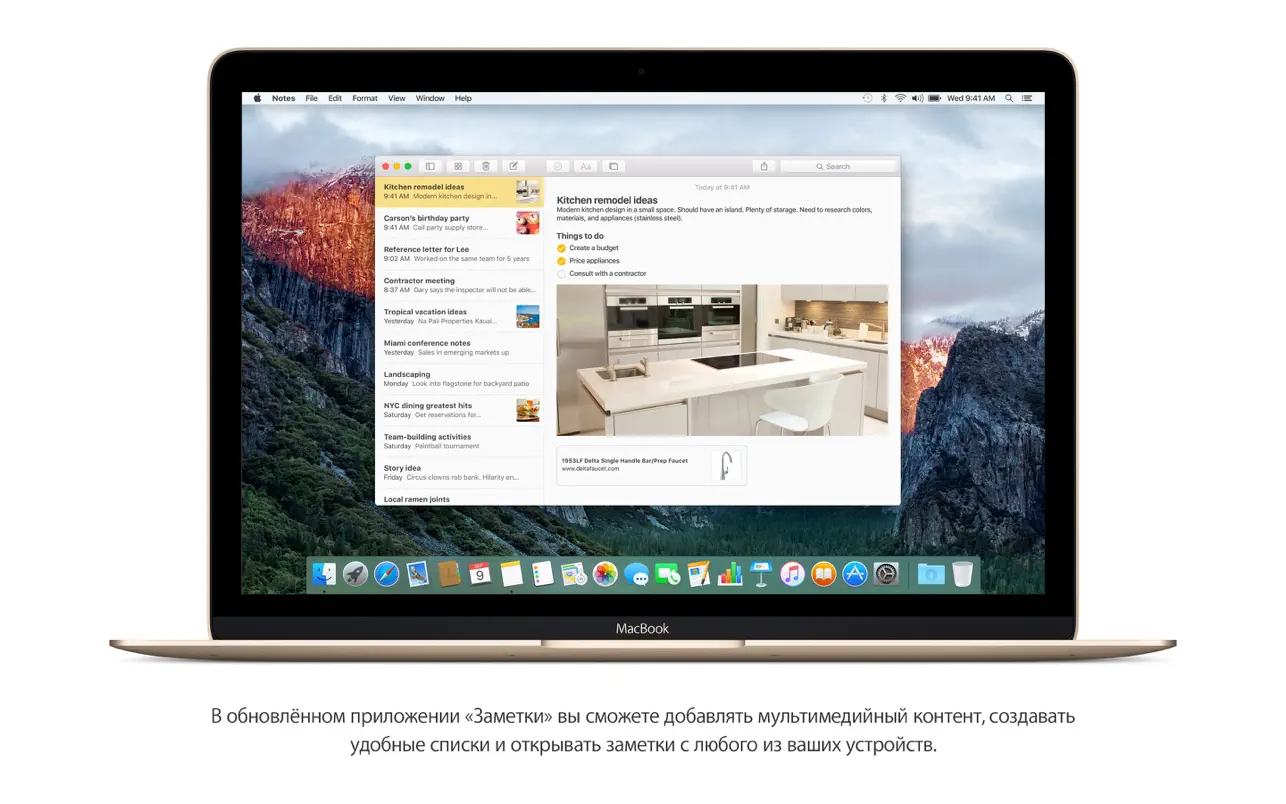
The Notes app: simple, powerful, and updated.
Format your notes: add titles, paragraph headings, bulleted and numbered lists, and to-do lists. Add media such as photos, videos, documents, PDFs, links, and map coordinates. Quickly find and view the contents of all your notes with the attachment browser.
More Features Included:
The Photos app offers new methods for working with images
For whole photo groups, add and modify geographical information as well as titles, descriptions, and keywords. To access additional editing features, use third-party extensions
Safari is the Internet’s greatest resource
Your favourite websites will always be available, updated, and open when you use Pinned Sites. Use themes and fonts like Sepia or Night when reading articles in Reader. Use the Smart Search feature in Safari to mute a specific webpage.
Metal makes graphics even faster.
At the system level, rendering efficiency and speed have been improved. The realism and excitement of games have significantly increased. Accelerated performance of resource-intensive programs has made content creation even simpler.
Quick fixes for common issues
Open apps and navigate between them with ease and speed. Open PDFs and emails even more quickly.
Significant Improvements in Performance:
- Metal API: El Capitan introduced Apple’s Metal graphics technology, which accelerated the performance of professional and gaming apps and increased system-level rendering efficiency by 40%.
- Speed Boosts: Daily tasks became substantially faster; opening PDFs in Preview was up to four times faster, and app launching witnessed a 40% speed gain.
Window and Interface Management
- Split View: Added an integrated split-screen snapping function that enables users to run two programs side by side in full screen without the need for manual resizing.
- Mission Control: It is now easier to arrange and view many open windows thanks to a revamped and simpler Mission Control.
Intelligent Integrated Apps
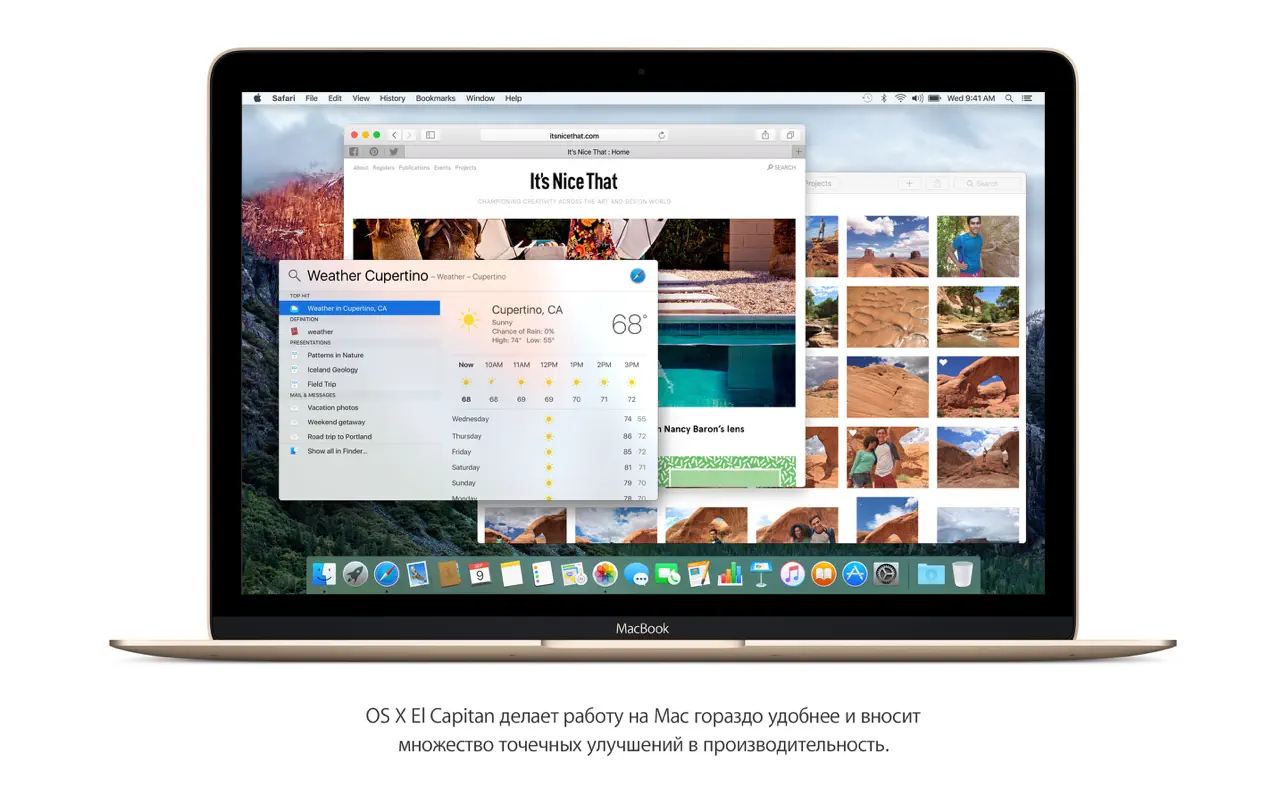
- Spotlight: Spotlight was able to comprehend natural language enquiries (such as “Find emails from John”) and deliver fast stock, weather, and sports results.
- Notes & Safari: While the Notes app evolved from a simple text editor into a rich-text platform with checklists and image support, Safari gained Pinned Sites for easy access to favourites.